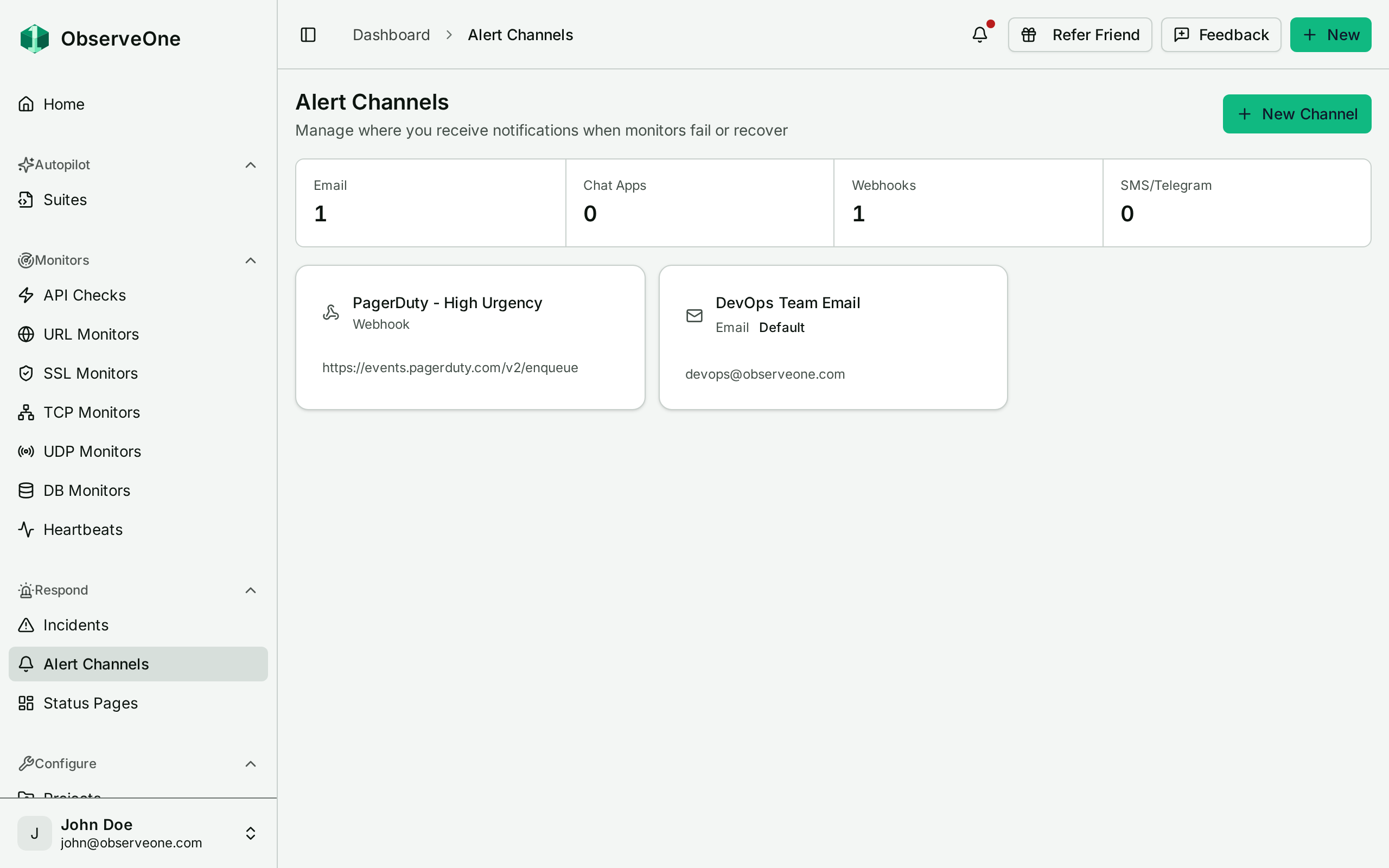
An alert channel is a destination. Monitors and suites decide whether to alert; channels decide where it lands. They live under Respond → Alert Channels.
The CLI equivalents are in Alert channels (CLI).
The seven channel types#
| Type | What it needs |
|---|---|
| An email address | |
| Slack | An incoming webhook URL |
| Discord | An incoming webhook URL |
| Microsoft Teams | An incoming webhook URL |
| Webhook | Any URL that accepts a POST |
| Telegram | A bot token and a chat ID |
| SMS | Twilio account SID, auth token, from-number, and the destination number |
Slack, Discord, Teams and the generic Webhook all store the same thing: one incoming webhook URL. Picking the right one of the four still matters, because it tells ObserveOne which service is on the other end, but the value you paste is the same shape either way.
Creating one#
Alert Channels → New, then pick a type from the grid. The form that follows asks only for that type's fields, plus a name. Give it a name you would recognise at three in the morning. "#ops-alerts (Slack)" beats "Slack" once you have four of them.
Only the Twilio Auth Token is a masked field. A Telegram bot token is typed in the clear, so create that channel somewhere nobody is watching your screen.
If it is your first channel, saving returns you to the dashboard, because adding a channel is one of the onboarding steps on the home checklist and it will now show as done. Every channel after that returns you to the channel list.
Send a test before you rely on it#
Each row in the list has a test action. Use it. A webhook URL copied with a truncated path looks exactly as healthy in the list as a working one, and so does a Telegram bot nobody added to the chat. The only thing that distinguishes a working channel from a broken one is a message actually arriving. Test at creation time, and again whenever you rotate a credential.
Creating a channel routes nothing on its own#
This is the part that surprises people. A channel is a destination, and a destination with nothing pointing at it delivers nothing. Alerts reach it only once something is subscribed to it:
- Monitors: each monitor form has a channel picker under Advanced Settings, next to the Alert on Failure switch. Tick the channels that monitor should alert. The picker has an Add Channel button if you need a new destination mid-form, and a Reload if you created one in another tab.
- Autopilot suites: the suite's Configuration tab has an Alerts section with the same picker, plus a choice between alerting when a test failed and when the run itself failed.
A channel can serve any number of monitors and suites, and a monitor can alert several channels at once.
The default channel#
One channel can be marked default, shown with a badge in the list. It does one specific thing: when you create a new Autopilot suite, your default email channel is subscribed to it automatically. If you have email channels but none is marked default, the oldest one is used. With no email channel at all, a new suite is created with no subscription.
That automatic subscription covers email only. Every other channel, and every monitor, still has to be picked explicitly.
Managing channels#
From the list you can test, edit and delete a channel. Which one is default is a switch inside the edit form, not an action on the list. Deleting asks for confirmation and cannot be undone.
Next steps#
- Creating monitors in the UI to point a monitor at a channel with its Alert on Failure switch.
- Autopilot in the dashboard to do the same for a suite.
- Alerts if you are self-hosting.